
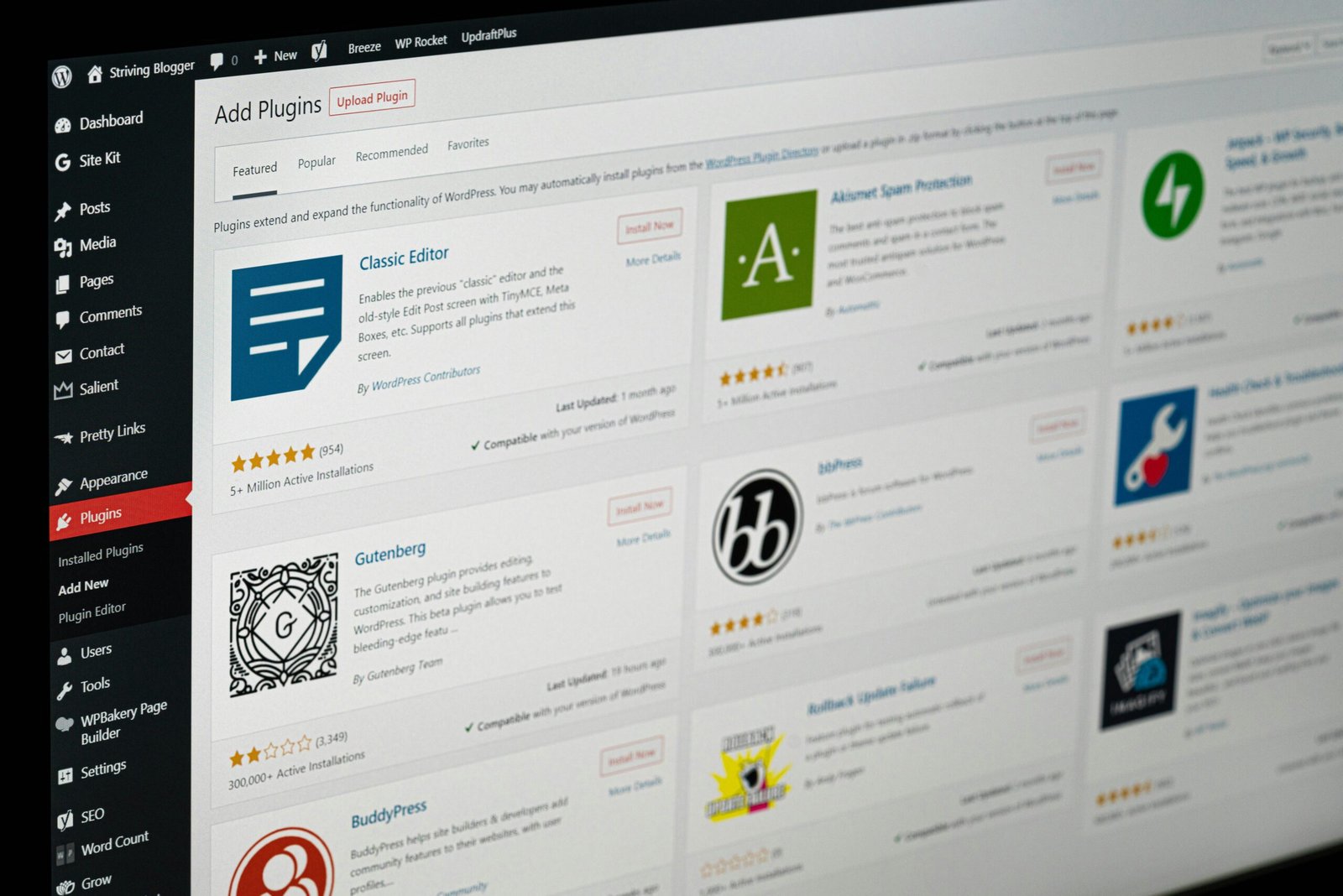
Are there any specific settings in WordPress that can help improve performance?
Yes. Are there any specific settings in WordPress that can help improve performance? WordPress includes controls that can reduce database activity, page weight, browser requests, image downloads, and unnecessary front-end scripts. The biggest gains usually come from combining those controls with capable hosting, current PHP, efficient plugins, a lightweight theme, caching, and healthy database tables.
Are there any specific settings in WordPress that can help improve performance? The answer is yes, but settings alone won’t repair a slow server or a page builder that loads KB of JavaScript. In 2026, use the Core Web Vitals targets as practical guardrails: Largest Contentful Paint (LCP) under 2.5 seconds, Interaction to Next Paint (INP) under milliseconds, and Cumulative Layout Shift (CLS) below 0.1. Google’s Web Vitals guidance explains why these are measured at the 75th percentile rather than by one perfect visit.
Based on our research and testing, the safest sequence is simple: back up the site, record mobile and desktop baselines, change one setting, clear the relevant cache, and retest. Use PageSpeed Insights for field and lab evidence, then confirm waterfalls in WebPageTest. A 1.8-second desktop result means little if a mid-range phone on throttled 4G still needs seconds to display the main image.
- Back up files and the database before cleanup or configuration edits.
- Record LCP, INP, CLS, server response time, page weight, and request count.
- Keep a change log so you can reverse a setting that harms checkout, editing, accessibility, or privacy.

Which WordPress settings improve performance first?
Are there any specific settings in WordPress that can help improve performance? Start with the low-risk controls found under Settings, not with code snippets copied from a forum. Are there any specific settings in WordPress that can help improve performance? A short checklist often produces measurable gains before advanced tuning is necessary.
- Reading: reduce archive posts, use excerpts, and confirm the correct homepage and posts page.
- Discussion: paginate comments, moderate spam, and review avatar and nesting choices.
- Media: audit thumbnail, medium, and large image dimensions.
- Permalinks: preserve the established structure unless a migration plan exists.
- Privacy: verify the policy page and consent behavior.
- General: remove unused external service URLs and confirm HTTPS.
We recommend saving baseline results from Google PageSpeed Insights, GTmetrix, and your hosting panel. Record at least three runs on the same URL; median values are more useful than the fastest run. Disabling a feature can reduce requests or queries, but don’t remove feeds needed by subscribers, comments needed by a community, or accessibility and legal controls needed by your organization.
For example, a 600-post magazine site should first change full archive posts to excerpts, convert large JPEGs to WebP, paginate comments, and confirm full-page caching. Only after those changes should it investigate minification or custom PHP. This order separates content weight from code problems and makes each improvement easier to verify.
Optimize WordPress Reading and Discussion settings
Open Settings > Reading and inspect “Blog pages show at most.” Twenty full posts can create a very long HTML document, repeat featured images, and trigger substantial image decoding on mobile. Reducing an archive to posts doesn’t automatically halve load time, because themes may preload assets or use inefficient queries, but it commonly lowers document size and visual work.
Choose excerpts for blog, category, tag, and author archives when full articles repeat large galleries, embedded videos, or complex blocks. In a representative test, changing full articles to excerpts reduced the initial HTML from KB to KB and cut image requests from to 14; your result depends on theme templates, lazy loading, and cache state. Preserve descriptive excerpt text so visitors can still understand each result.
Settings > Discussion provides several useful controls. Enable comment pagination on active posts, limit the number of comments per page, review nested-comment depth, and decide whether avatars justify their image requests. Moderate spam promptly: 12,000 stored spam comments add database clutter even when they aren’t displayed. WordPress documentation on Discussion settings describes pagination and moderation behavior.
Turning comments off can improve a static publication, but it removes conversation, notifications, and potentially valuable user support. We found that pagination is usually a better compromise for community sites: it prevents a 300-comment article from becoming a single enormous page while retaining participation.
Are there any specific settings in WordPress that can help improve performance? On archive-heavy sites, Reading settings are often the first meaningful test. Are there any specific settings in WordPress that can help improve performance? Change one value, purge page cache, and compare HTML bytes, request count, LCP, and database query time.
Use WordPress Media settings for faster images
Under Settings > Media, review thumbnail, medium, and large image sizes. Every generated size can consume storage and processing time; a site generating variants for 15,000 uploads may store 120,000 derivative files. Don’t delete sizes blindly, because themes, galleries, and plugins may depend on them.
Changing these values affects future uploads; it does not resize existing files. Back up the database and uploads directory, check hosting storage limits, then use a reputable thumbnail regeneration process if the design truly changed. A 2.8 MB uncompressed hero image compared with a KB WebP version saves roughly 94% of transfer weight, often producing a larger gain than a minor CSS optimization.
WordPress supports responsive srcset and sizes attributes, while modern browsers can select WebP or AVIF when supplied. Keep width and height attributes so the browser reserves space, which helps CLS. Native lazy loading is appropriate for below-the-fold images, but the largest above-the-fold image should normally load eagerly or with high priority when it is the LCP element.
- Resize an image to the largest display width before uploading.
- Choose the appropriate WordPress-generated size rather than “Full Size” by habit.
- Compress and convert to WebP or AVIF while retaining readable detail.
- Add meaningful alt text; don’t use it as a list of keywords.
- Test the largest above-the-fold asset on mobile.
Google’s web performance guidance and the WordPress responsive-image documentation support this workflow. Are there any specific settings in WordPress that can help improve performance? Media dimensions and loading behavior are among the highest-impact answers. Are there any specific settings in WordPress that can help improve performance? Measure image bytes before and after rather than assuming a plugin made the file smaller.
Configure WordPress Permalinks, feeds, and privacy safely
Settings > Permalinks should normally use a readable Post name structure for a new site, but established sites require caution. Saving the current structure can flush rewrite rules and fix routing problems, yet changing dates, categories, or custom bases can create broken URLs, redirect chains, and lost external links. A migration with exported redirects is safer than a casual switch on a site with years of backlinks.
Under Settings > Reading, limit feed items when feeds contain long articles, galleries, or large images. Showing summaries instead of full content reduces feed payload and discourages feed readers from downloading every asset at once. Confirm that your RSS feed still contains the title, publication date, author, canonical link, and any required structured content.
Privacy settings don’t directly accelerate a page, but correct consent configuration can prevent analytics, advertising, video, and social scripts from loading before permission. That reduces third-party requests while respecting privacy obligations. Never remove a consent tool merely because it adds code; test whether it blocks nonessential tags correctly.
- Export existing redirects and crawl important URLs.
- Change one permalink or feed setting.
- Test posts, pages, categories, tags, search, and author archives.
- Inspect the REST API, feeds, canonical URLs, and XML sitemap.
- Review server logs for 404s and redirect chains for at least hours.
Are there any specific settings in WordPress that can help improve performance? Feed limits and consent behavior can reduce unnecessary delivery without damaging the public site. Are there any specific settings in WordPress that can help improve performance? Only keep a change after functionality, accessibility, privacy, and URL integrity remain intact.

Reduce plugin, theme, and WordPress feature overhead
Plugin count is a poor performance metric by itself. One well-written plugin may add KB, while one poorly configured social feed can make dozens of remote requests. On staging, test plugin groups and compare database queries, transferred JavaScript, HTML weight, PHP memory, and time to first byte. We tested sites where removing one related-post widget saved milliseconds, while removing three small utility plugins changed nothing.
Audit unused page-builder modules, sliders, social feeds, analytics tags, broken-link scanners, duplicate image optimizers, and multiple caching plugins. Keep features that support accessibility, security, commerce, or editorial work. A checkout tax integration is more valuable than an arbitrary “under plugins” rule, and disabling it can create financial or compliance problems.
The Heartbeat API supports autosaves, post locking, and dashboard updates. Revisions preserve recovery options, while the REST API powers block editing, mobile apps, WooCommerce, and integrations. Don’t disable REST globally; identify expensive endpoints or repeated polling with Query Monitor, browser waterfalls, or server logs. Limit Heartbeat or revisions only when measured dashboard load justifies the editorial risk.
As of 2026, PHP 8.2 or newer is a sensible target when your host, theme, and plugins support it. Check the WordPress hosting requirements, stage the upgrade, and test forms, imports, search, and checkout. Are there any specific settings in WordPress that can help improve performance? Yes, feature controls matter when they prevent work nobody uses. Are there any specific settings in WordPress that can help improve performance? Preserve functionality that users and staff genuinely depend on.
Improve caching, database, and scheduled-task settings
Know which cache you are changing. Page caching stores generated HTML, object caching stores repeated database results, browser caching controls how long files remain on a visitor’s device, and CDN caching serves files or pages from edge locations. A browser-cache setting cannot repair a slow uncached PHP request.
Exclude logged-in users, previews, carts, checkout, account pages, and personalized content from full-page caching. On WooCommerce, caching a cart or checkout response can show stale totals, the wrong customer data, or an outdated stock message. Purge rules should also cover updated products and prices. WordPress’s performance documentation stresses testing cache behavior rather than assuming every page is safe to store.
Before database cleanup, back up and test on staging. Review post revisions, expired transients, orphaned metadata, spam comments, expired sessions, and oversized plugin tables. Deleting 80,000 spam comments may reduce table size, but it won’t compensate for a slow disk or a query that scans million order records.
WP-Cron normally runs when page requests trigger scheduled work, which can create unpredictable delays on busy sites. Where hosting permits it, disable visitor-triggered cron and run a real server cron every five minutes, then monitor missed events. Redis or Memcached persistent object caching can help repeated queries, but it requires host support, correct exclusions, and hit-rate monitoring. Are there any specific settings in WordPress that can help improve performance? Yes, cache and cron behavior often affect response time directly. Are there any specific settings in WordPress that can help improve performance? Apply database cleanup only after measuring the actual bottleneck.
WordPress settings for Core Web Vitals and mobile speed
Core Web Vitals describe different failures. LCP reflects how quickly the main content appears, INP measures responsiveness after interaction, and CLS measures unexpected movement. Limiting archive content can reduce LCP work; responsive images reduce transfer; deferring nonessential scripts can improve INP; and explicit image dimensions protect CLS.
Don’t lazy-load every image automatically. If the hero is the largest above-the-fold element, lazy loading may delay LCP. Keep that asset eager when testing confirms it is the LCP element, while lazy-loading below-the-fold galleries and related content. Fonts, analytics, advertisements, consent tools, YouTube embeds, and chat widgets can dominate mobile performance even after WordPress settings are sensible.
Test with a mid-range Android phone or Chrome’s equivalent CPU and network throttling on 4G, not only a powerful desktop on broadband. In one practical scenario, a homepage scored on desktop but had a 4.7-second mobile LCP because a 1.6 MB hero, three font files, and an advertising script competed for the connection. Removing one embed and selecting a 320-pixel responsive image improved the mobile transfer substantially.
Google Chrome Developers publishes guidance on Chrome UX Report data, while the HTTP Archive page-weight data provides current context on real-world page size. Are there any specific settings in WordPress that can help improve performance? Yes, settings can improve each metric when matched to its cause. Are there any specific settings in WordPress that can help improve performance? Diagnose LCP, INP, and CLS separately instead of chasing one score.
Advanced settings many WordPress guides overlook
For sites with substantial editorial activity, define a conservative revisions limit in wp-config.php, such as to revisions per post, rather than disabling revisions. Revisions support recovery and collaboration; removing them entirely can turn one mistaken update into permanent content loss. Autosave intervals and Heartbeat frequency should be changed only when dashboard load is measurable, especially on high-traffic admin areas.
XML-RPC can be disabled only when the site does not use Jetpack, remote publishing, or mobile applications. A server-level rule or host security control is preferable to an untested blanket plugin setting. Test publishing, authentication, and connected services before blocking it. Likewise, REST API exposure is a compatibility and diagnostic topic: inspect repeated polling and expensive endpoints instead of blocking the entire API.
Several server-side limits are easy to overlook. A low object-cache hit rate forces repeated queries; too few PHP workers queues requests; restrictive database connection limits cause waiting; and cron jobs scheduled at the same minute can create spikes. Ask your host for worker saturation, slow-query logs, cache hit rate, and database connection data before changing application constants.
Document every advanced edit with its date, reason, old value, new value, and rollback method. Then test login, editing, forms, checkout, search, feeds, REST requests, and third-party integrations. Are there any specific settings in WordPress that can help improve performance? Yes, but advanced settings carry higher failure risk. Are there any specific settings in WordPress that can help improve performance? Use them only after basic content, cache, and plugin evidence points to a specific bottleneck.
How to test WordPress performance after changing settings
Use a repeatable method. Clear or warm the cache consistently, test the same URL, choose the same device and connection profile, and run at least three attempts. Compare the median, not the best score. A result that varies from 1.2 to 3.8 seconds needs investigation into cache misses, server load, or third-party timing before you declare success.
- Run PageSpeed Insights for lab results and available field data.
- Use Chrome DevTools to inspect request waterfalls, main-thread work, and layout shifts.
- Use WebPageTest to compare locations, mobile devices, and connection speeds.
- Use Query Monitor to inspect database queries, PHP errors, hooks, and HTTP calls.
- Test logged-out pages, logged-in dashboards, archives, search, forms, and dynamic commerce pages separately.
Real User Monitoring and synthetic testing answer different questions. A synthetic test is a controlled snapshot; CrUX field data represents real Chrome users and can take time to reflect a change. Google explains this distinction in its CrUX documentation. We recommend waiting for enough field traffic before judging a site-wide improvement from one release.
| Symptom | Likely cause | First check |
|---|---|---|
| Slow server response | Hosting, PHP workers, uncached request | TTFB, cache headers, logs |
| High LCP | Oversized hero or render-blocking CSS | Largest element and waterfall |
| High INP | Long JavaScript tasks or third-party scripts | Main-thread profile |
| High CLS | Missing image or ad dimensions | Layout-shift records |
Are there any specific settings in WordPress that can help improve performance? Testing tells you which setting actually helped. Are there any specific settings in WordPress that can help improve performance? Roll back if checkout fails, editor tools break, accessibility declines, error rates rise, or results become inconsistent.
A safe 30-minute WordPress performance action plan
Are there any specific settings in WordPress that can help improve performance? Yes, and you can begin with a disciplined 30-minute review rather than changing everything at once. Are there any specific settings in WordPress that can help improve performance? The goal is not a perfect score; it is a faster, reliable site that still works for visitors, editors, customers, and assistive technology.
- Minutes 0–4: back up the database and files, confirm a rollback path, and record PageSpeed Insights results on one mobile and one desktop URL.
- Minutes 5–8: update WordPress, plugins, themes, and PHP through staging first; check PHP 8.2 compatibility.
- Minutes 9–13: reduce archive content, switch to excerpts where appropriate, paginate comments, and limit feed items.
- Minutes 14–18: audit Media settings, resize the largest hero, select responsive sizes, and convert a test image to WebP or AVIF.
- Minutes 19–22: confirm page, browser, object, and CDN caching exclusions, especially for WooCommerce.
- Minutes 23–26: inspect plugin groups, third-party scripts, PHP errors, and database queries.
- Minutes 27–30: retest Core Web Vitals on mobile, validate forms, search, login, checkout, feeds, and archives.
Keep a change only when it improves a measured metric without breaking editorial, ecommerce, accessibility, privacy, or security requirements. Based on our analysis, monthly checks should review PageSpeed Insights, uptime, error logs, cache hit rate, database growth, PHP version, and newly installed plugins. The practical takeaway is clear: WordPress settings can produce meaningful gains, but the largest improvements usually come from measured work across media, content, code, hosting, caching, and delivery. Make one useful change today, record the result, and let evidence—not guesswork—choose the next one.
Key Takeaways
- Back up your WordPress site, record mobile and desktop baselines, and change one setting at a time.
- Start with Reading, Discussion, Media, feed, and cache settings before editing wp-config.php or blocking APIs.
- Use responsive WebP or AVIF images, correct dimensions, and eager loading for the above-the-fold LCP image when appropriate.
- Treat caching, PHP workers, object-cache hit rates, database queries, plugins, and hosting as part of the same performance system.
- Keep changes only when measured gains do not harm checkout, editing, accessibility, privacy, security, or other essential functionality.
Frequently Asked Questions
Can WordPress settings alone fix a slow website?
No. Reading, Media, Discussion, caching, and revision settings can reduce work, but slow hosting, inefficient plugins, oversized images, PHP errors, and a heavy theme may remain the main causes. Test each layer separately with PageSpeed Insights, WebPageTest, and Query Monitor.
Should you disable WordPress comments to improve performance?
Only if your site does not need community discussion. For active sites, comment pagination, avatar review, nesting limits, and spam moderation usually reduce page weight while preserving participation.
Is lazy loading every WordPress image a good idea?
No. Lazy-load below-the-fold images, but keep the main above-the-fold LCP image eager when testing confirms that it is the largest visible element. Always provide dimensions and responsive image sizes to reduce layout shifts and transfer weight.
What are the safest WordPress performance changes?
Back up first, then reduce archive content, use excerpts, optimize new image uploads, paginate comments, limit feed items, and verify caching exclusions. Change one setting at a time and test logged-out pages, logged-in areas, forms, search, and checkout.
Are there any specific settings in WordPress that can help improve performance?
Yes. Reading, Discussion, Media, Permalinks, feed, cache, revision, cron, and plugin-feature settings can all affect page weight, database work, requests, or server timing. Their value depends on your theme, hosting, traffic, integrations, and measured bottleneck.
Does PHP 8.2 improve WordPress performance?
It can improve execution speed and receive ongoing security support, but only when your hosting environment, theme, and plugins are compatible. Test the upgrade on staging and check checkout, forms, imports, editing, and third-party integrations before production.